
Scheduled Instagram exports (cloud storage)
Set it up once on mobile and let Instagram drop new exports into your cloud storage (e.g., Google Drive). Whenever it updates, just import the latest export in SecureFollow ? no repeated ZIP requests.
You can set up recurring exports (e.g., daily) or run a one-time export. Either way, you can send the files to cloud storage (e.g., Google Drive) and import them into SecureFollow.
Schedule your export to cloud storage (daily or once)
- Instagram → Settings and privacy → Accounts Center.
- Open Your information and permissions → Export your information.
- Tap Create export → Export to external service.
- Select an external service (e.g., Google Drive) and continue.
- Choose Daily (or Once) and set duration if prompted.
- Connect the external service, choose JSON, then Start export.
Tip: create a dedicated folder in your cloud storage so the JSON files are easy to find.
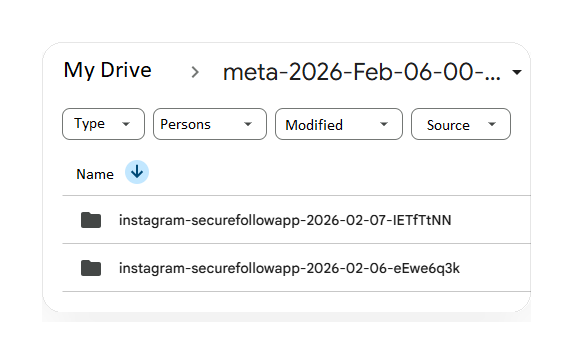
If you set up recurring exports, Meta creates a Drive folder named like meta-2026-Feb-06-00-58-43. Inside, you'll see one subfolder per run (for example instagram-...-2026-02-07-...). That's where your exports will appear over time.
When you connect Google Drive, Meta's transfer flow uses authorization (OAuth). Meta says the system should request only the permissions required to transfer your export to the selected destination and access should end once the transfer is complete. Always review the exact permissions Google shows before accepting, and revoke access when you don't need it.
Choose JSON (not HTML)
- Select JSON as the export format.
- If prompted, include Connections / Followers & following.
- Finish the export setup.
SecureFollow only needs connection data, so you can skip media if Instagram lets you customize.
Import your JSON files from cloud storage / Files
- Open SecureFollow → Snapshot.
- Tap Choose files and browse your cloud storage / Files.
- Select the main followers/following JSON files (and any split parts).
- Wait for SecureFollow to process locally.
SecureFollow only requires two files to work:
- followers_*.json (this can be followers_1.json, followers_2.json, etc.)
- following.json
Your export may include 0, 1, or many optional JSON files inside connections (for example requests, blocked, close friends). These are not needed to calculate followers/following.
SecureFollow now supports importing standalone JSON files from cloud storage. If your device doesn't let you select multiple files at once, import one file and then add the other.
If your phone can't select multiple files:
- Import one main file first (followers_*.json or following.json).
- If you want to include optional connections files, add them between the two main files (together with a main file).
- Add the second main file to finish the import — once you add it, the import completes.
Important: don't start with an optional file only — SecureFollow needs followers/following to build the dataset.
If you also use Diff, pick the files from two different export dates.
See step-by-step screenshots (tap to expand)20 steps
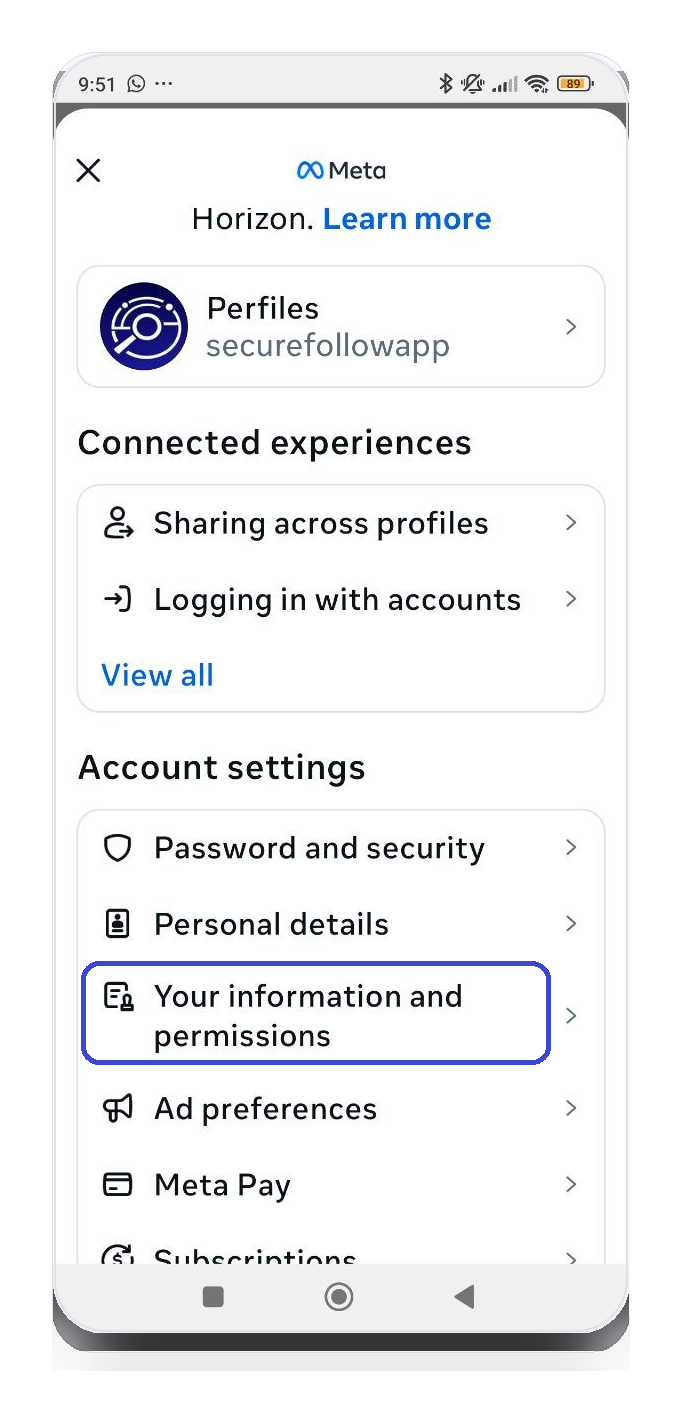
→In Accounts Center, open Your information and your permissions. 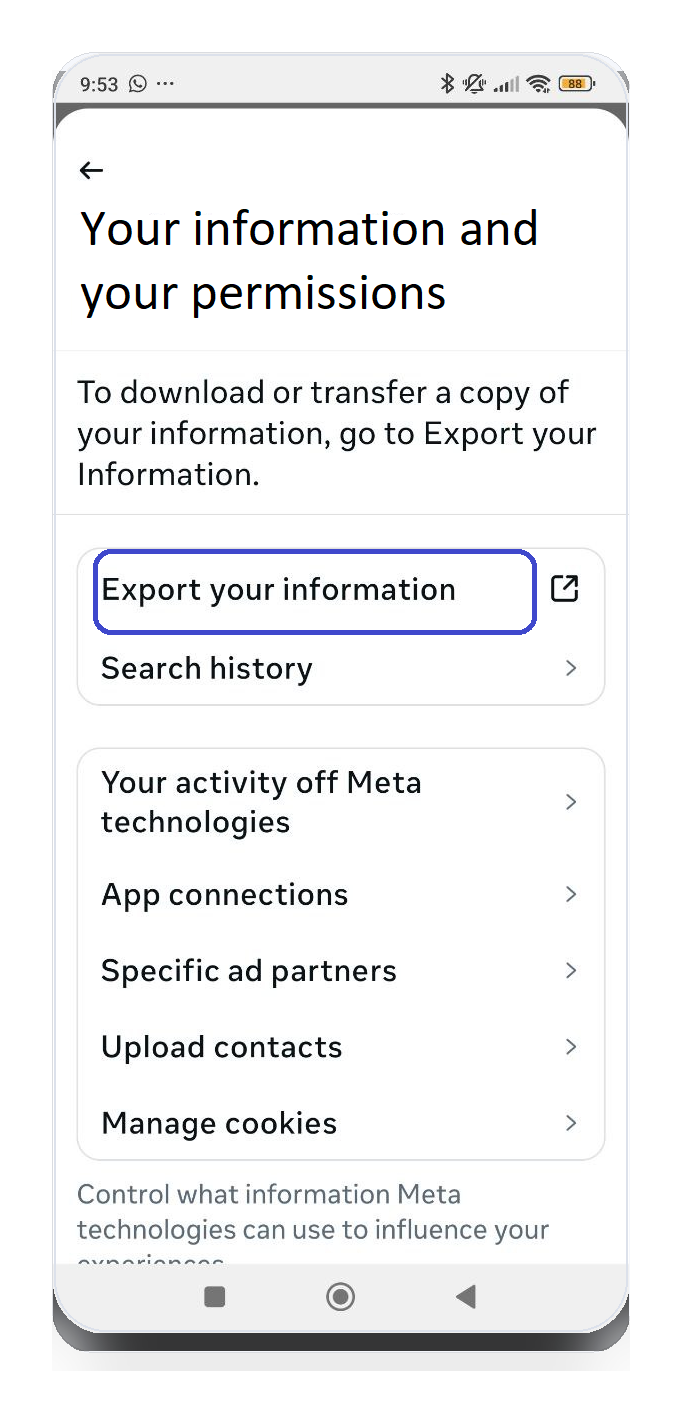
→Tap Export your information. 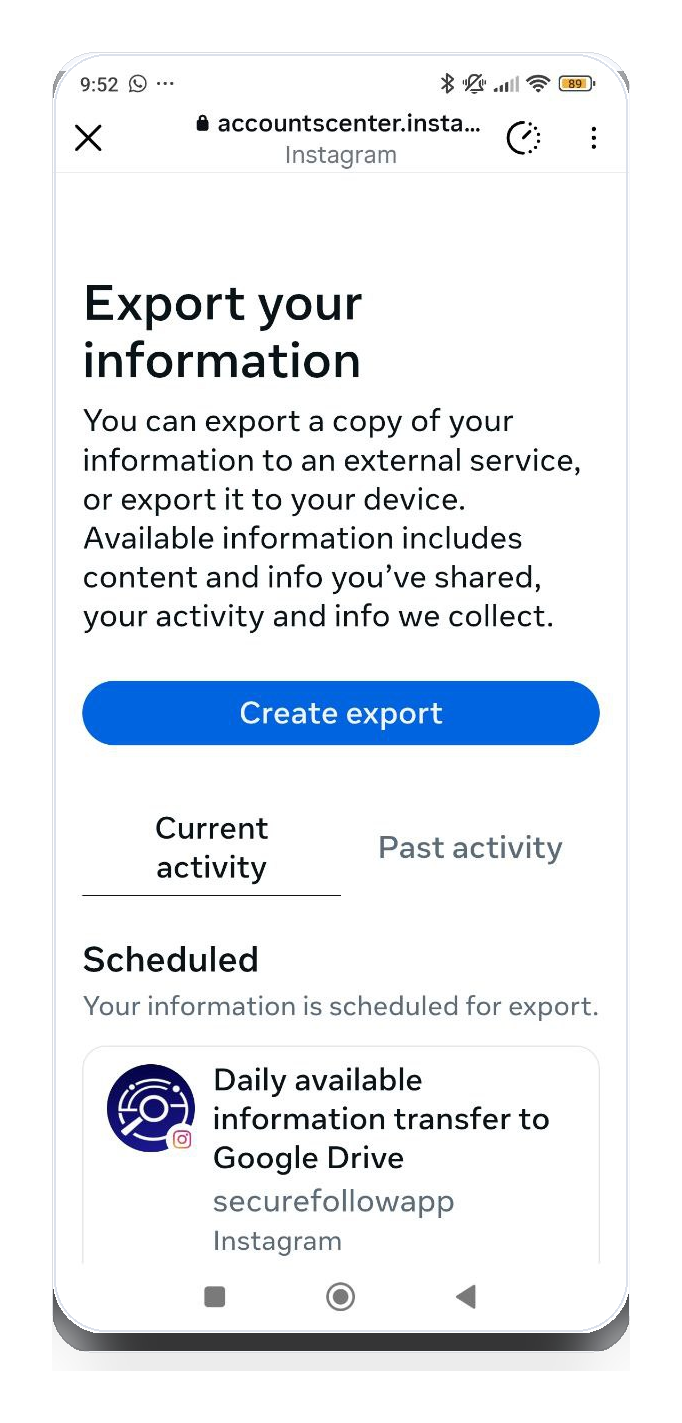
→Tap Create export. 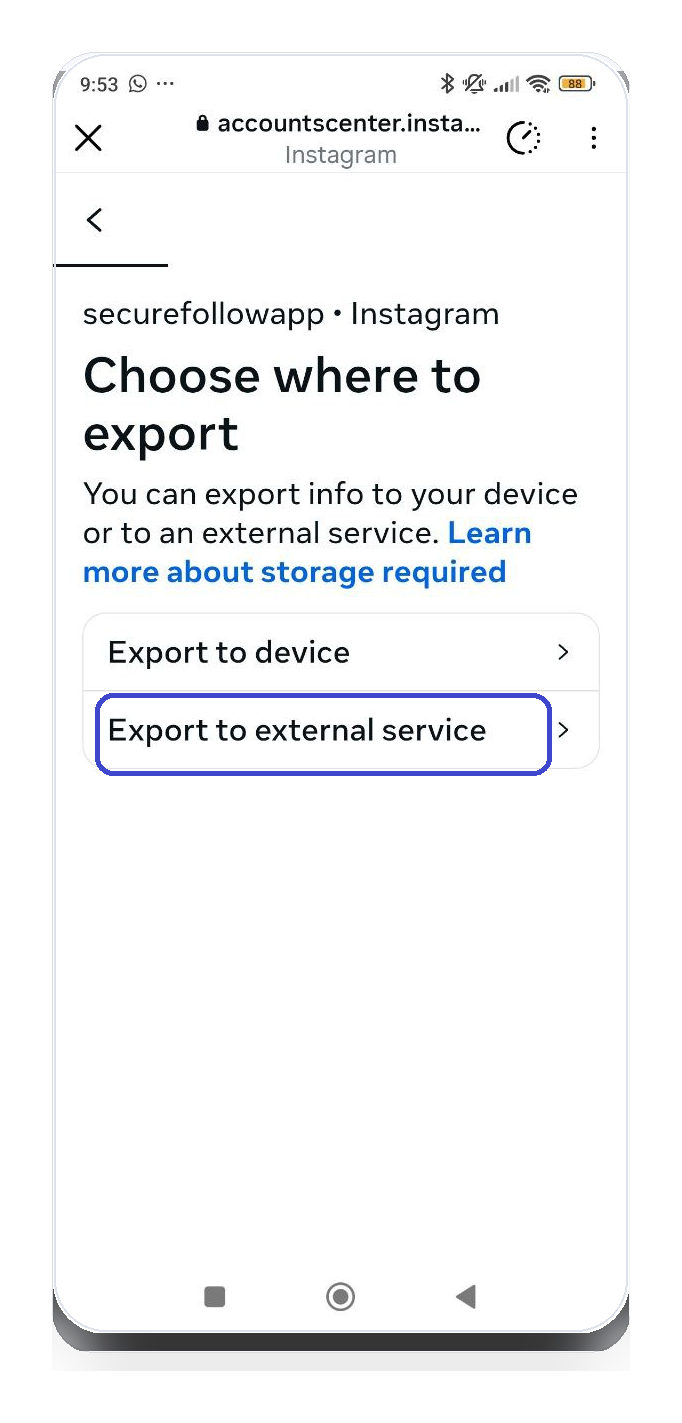
→Choose Export to external service (not Export to device). 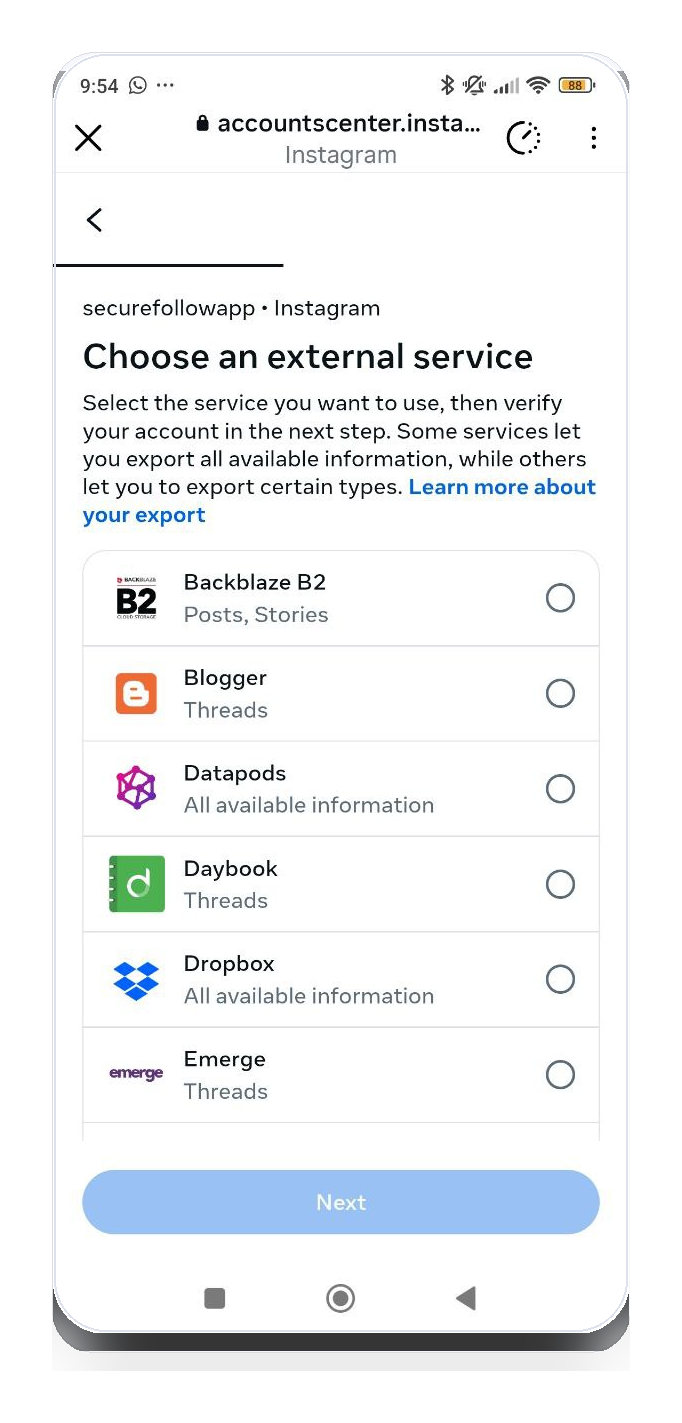
→Choose an external service from the list (e.g., Google Drive). 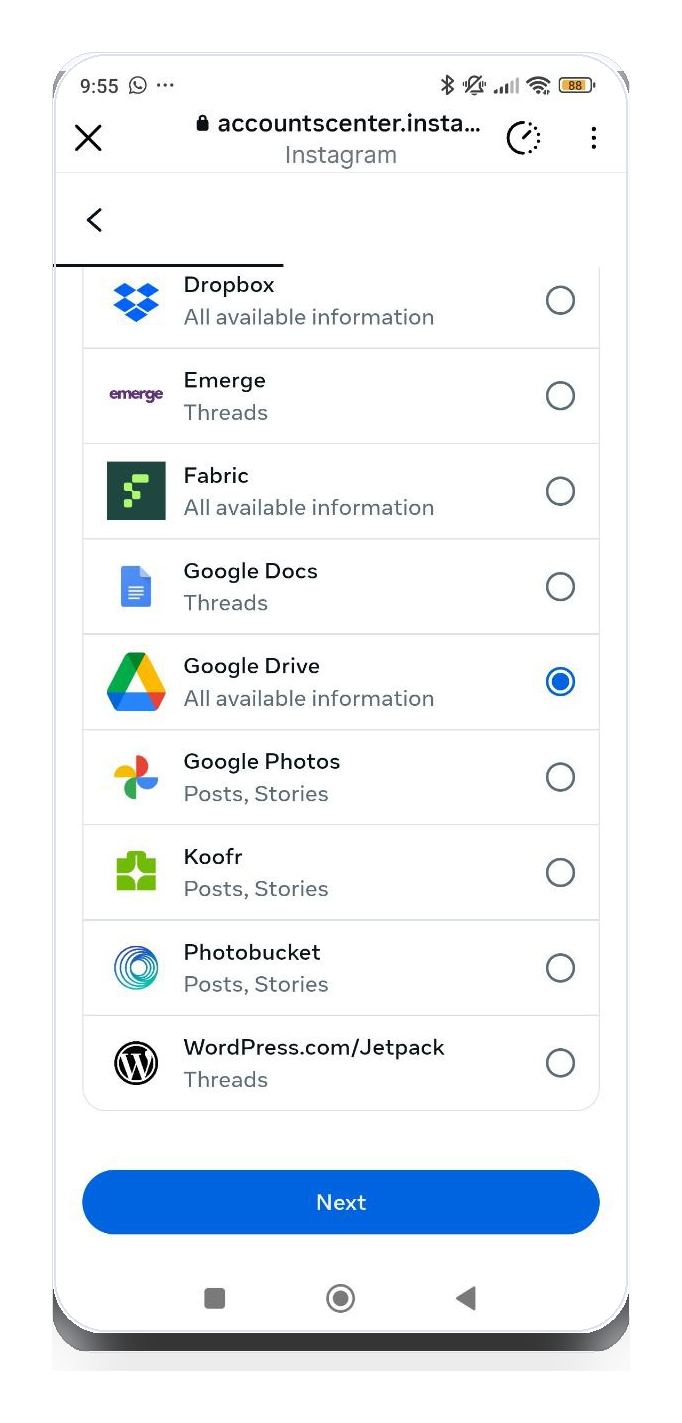
→Confirm the external service selection and tap Next. 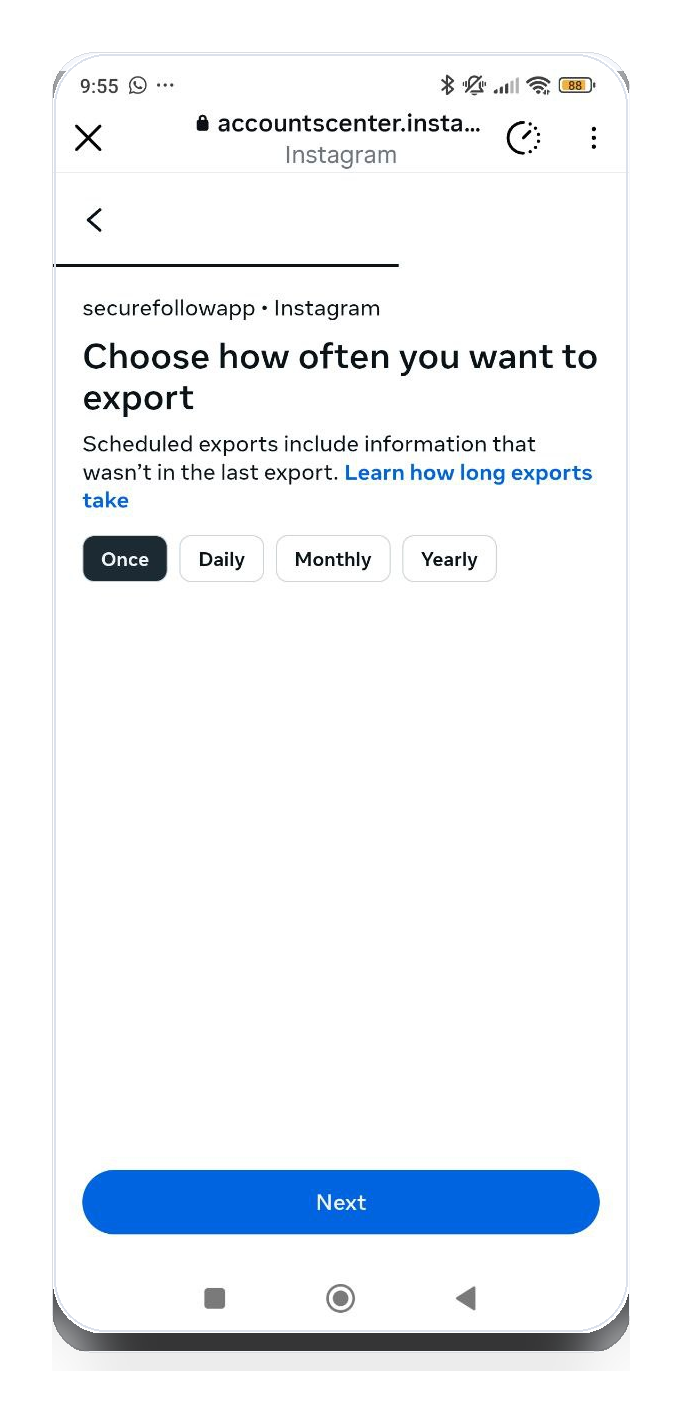
→Choose how often you want to export (Once, Daily, Monthly, Yearly). 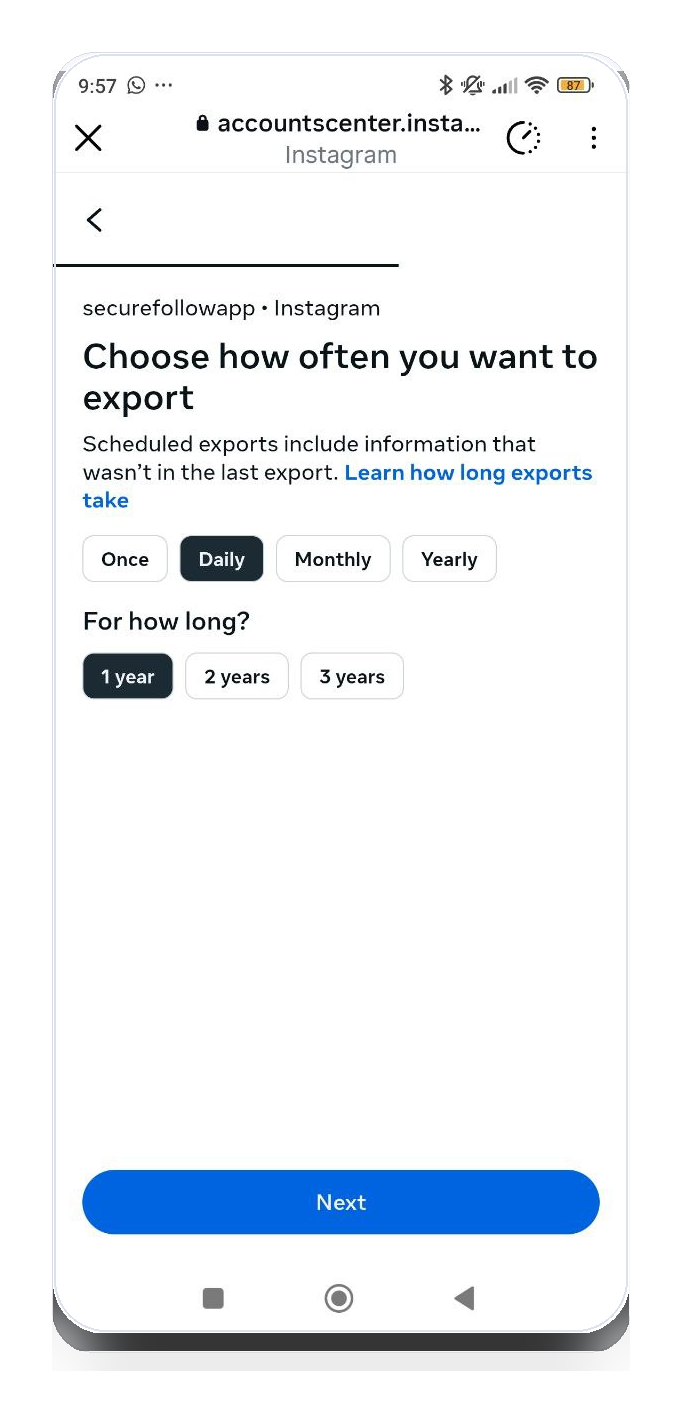
→If you choose Daily, set the duration (1 year, 2 years, 3 years). 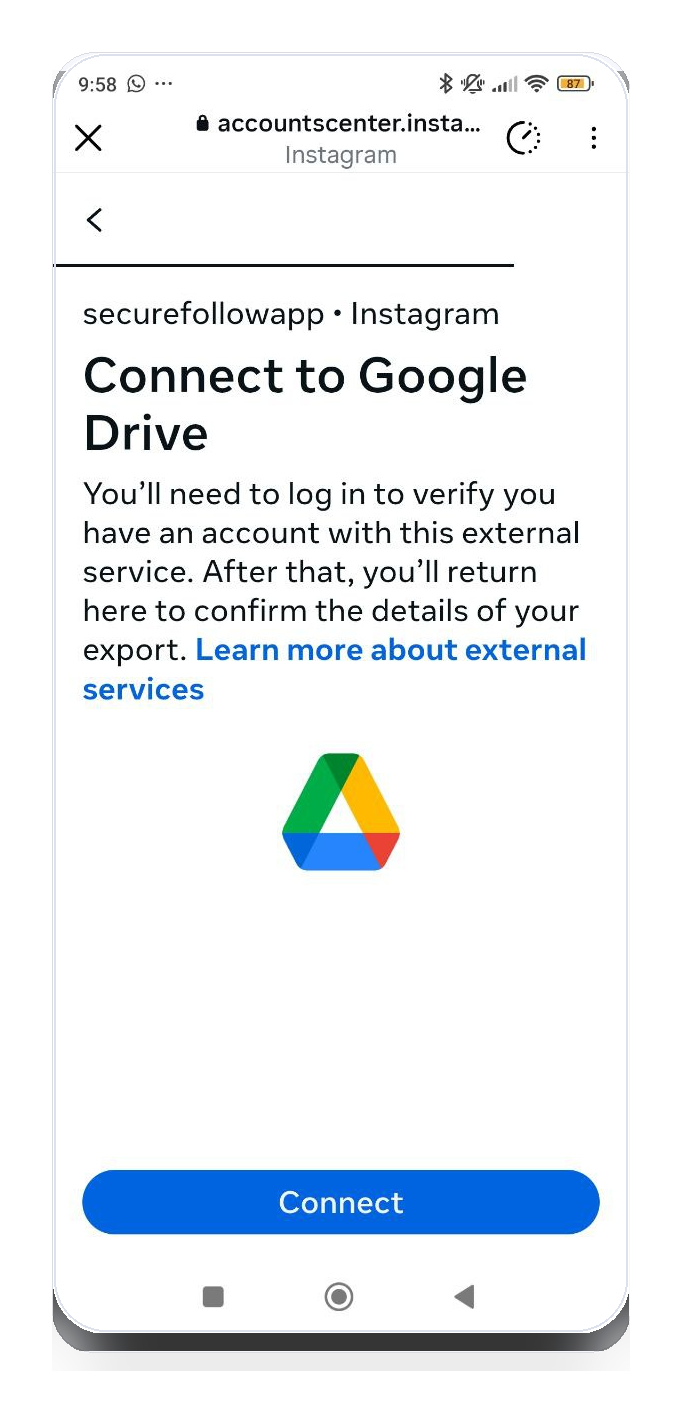
→Tap Connect to link the external service (e.g., Google Drive). 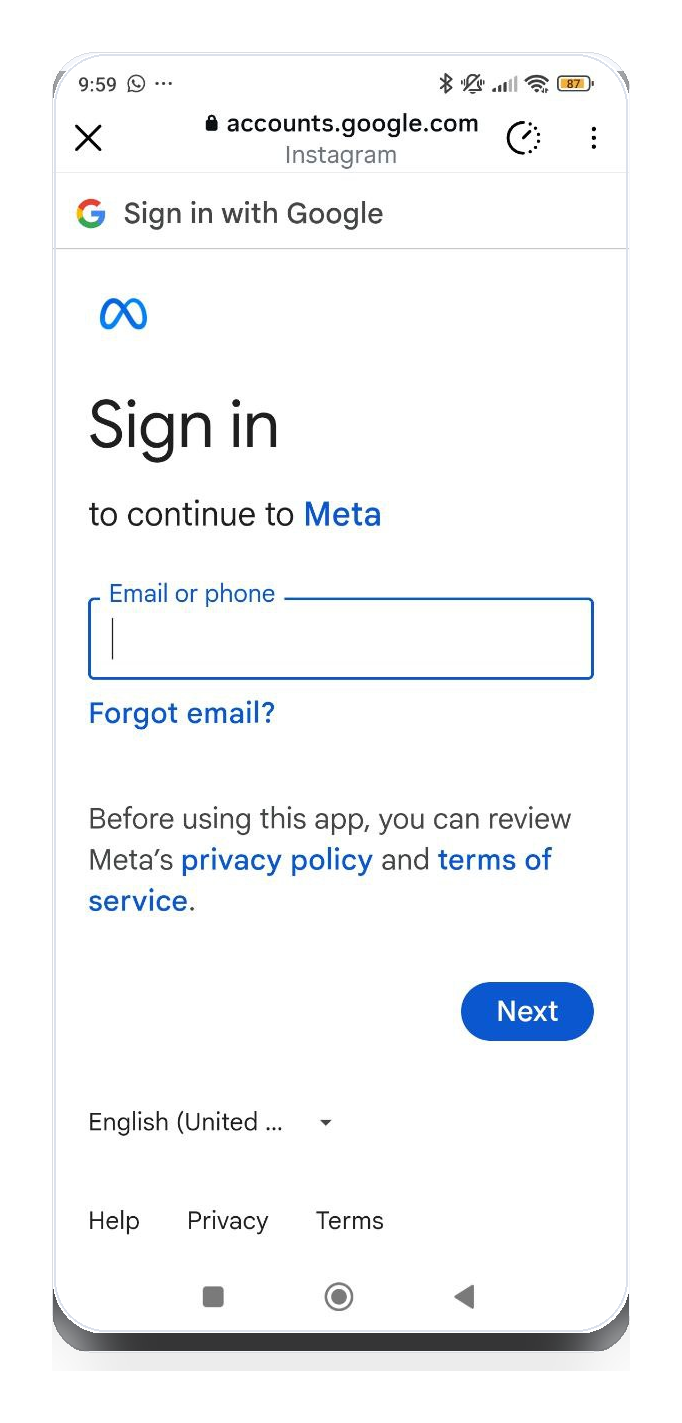
→Sign in to your Google account. 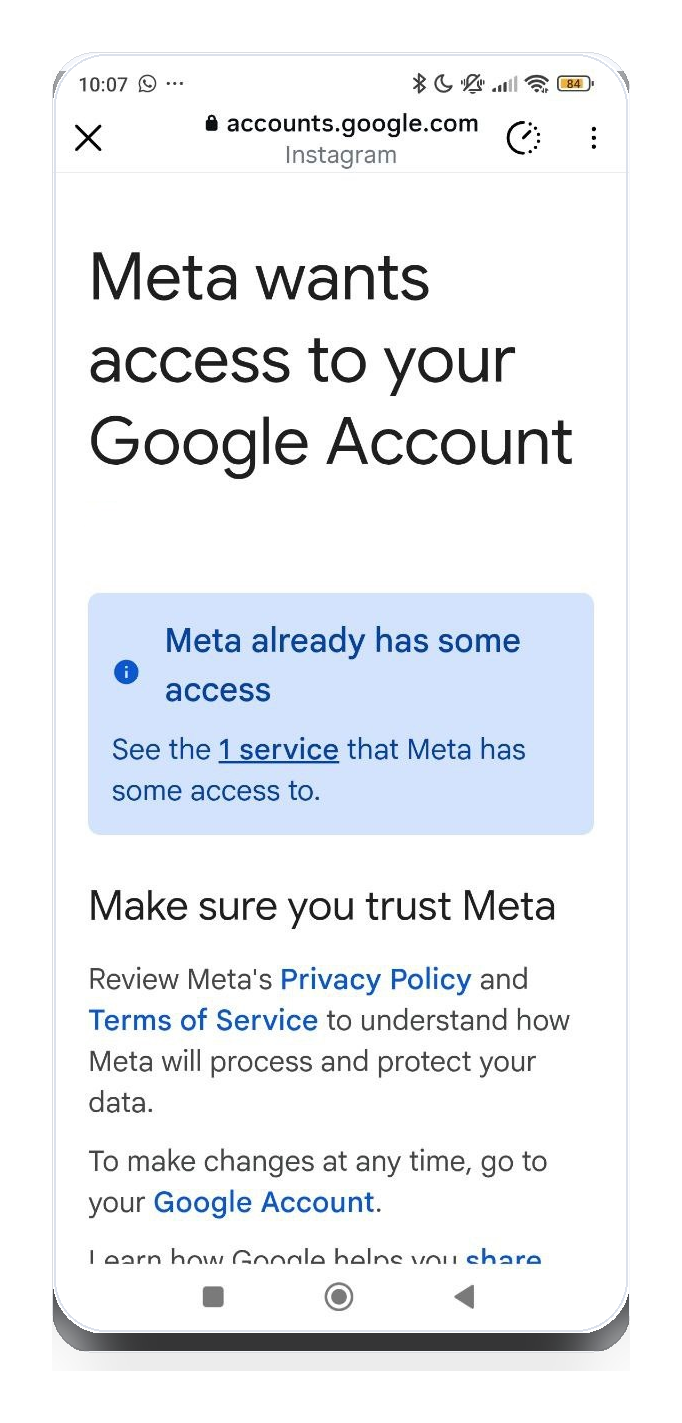
→Review the permissions screen and continue. 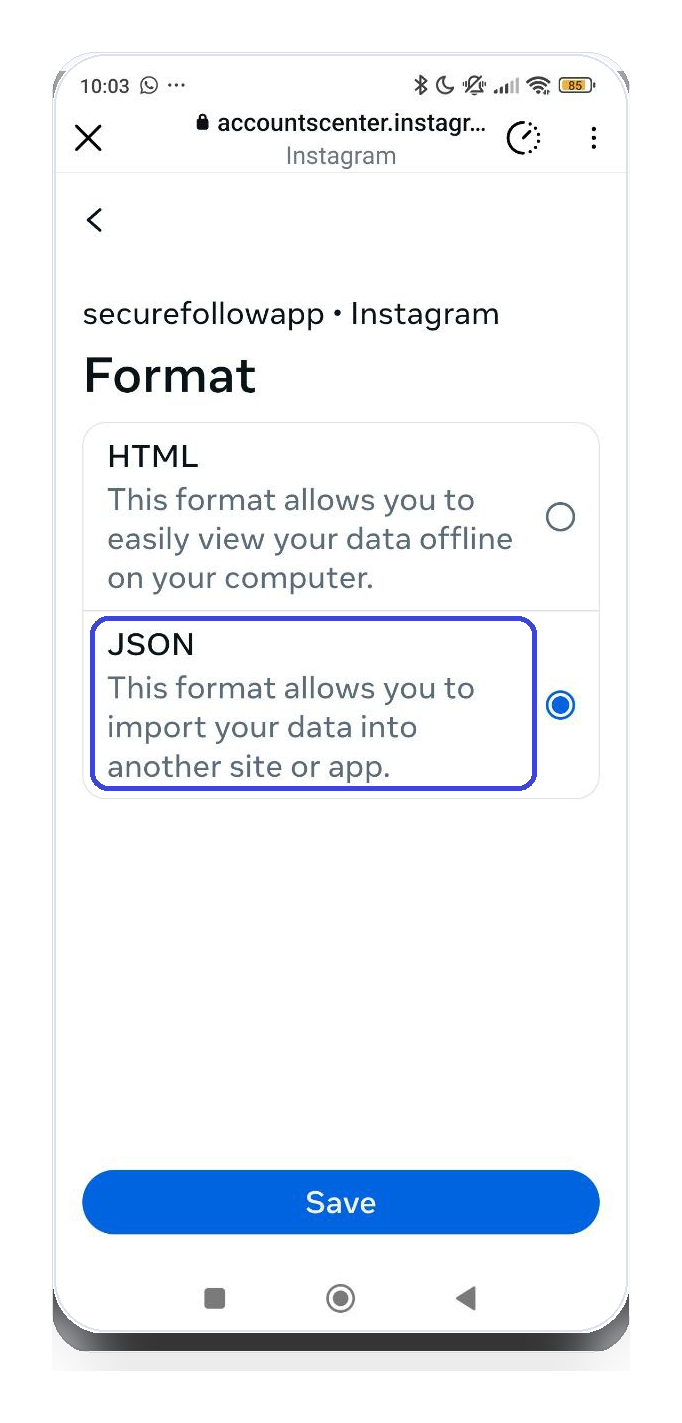
→Choose JSON for the export format. 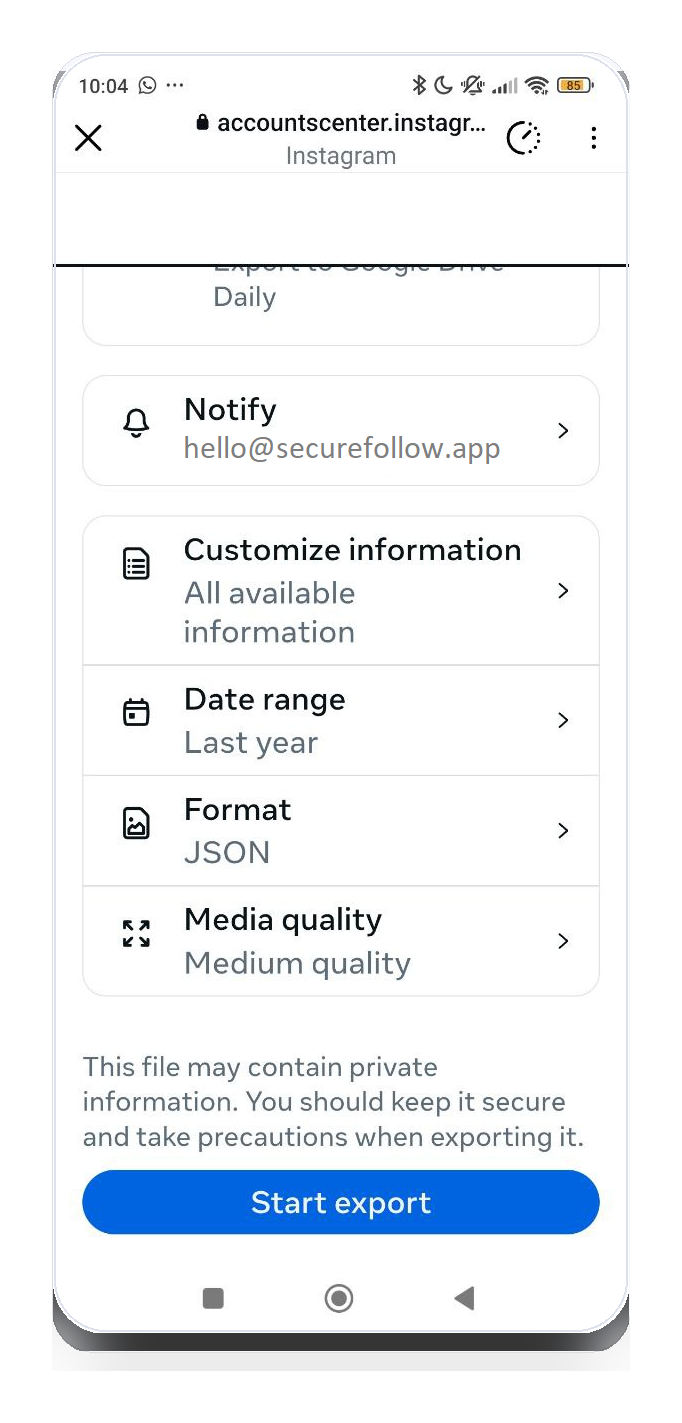
→Review export settings (Format: JSON) and tap Start export. Tip: Instagram lets you choose media quality, pick low to keep the ZIP smaller (SecureFollow only needs your connection data). 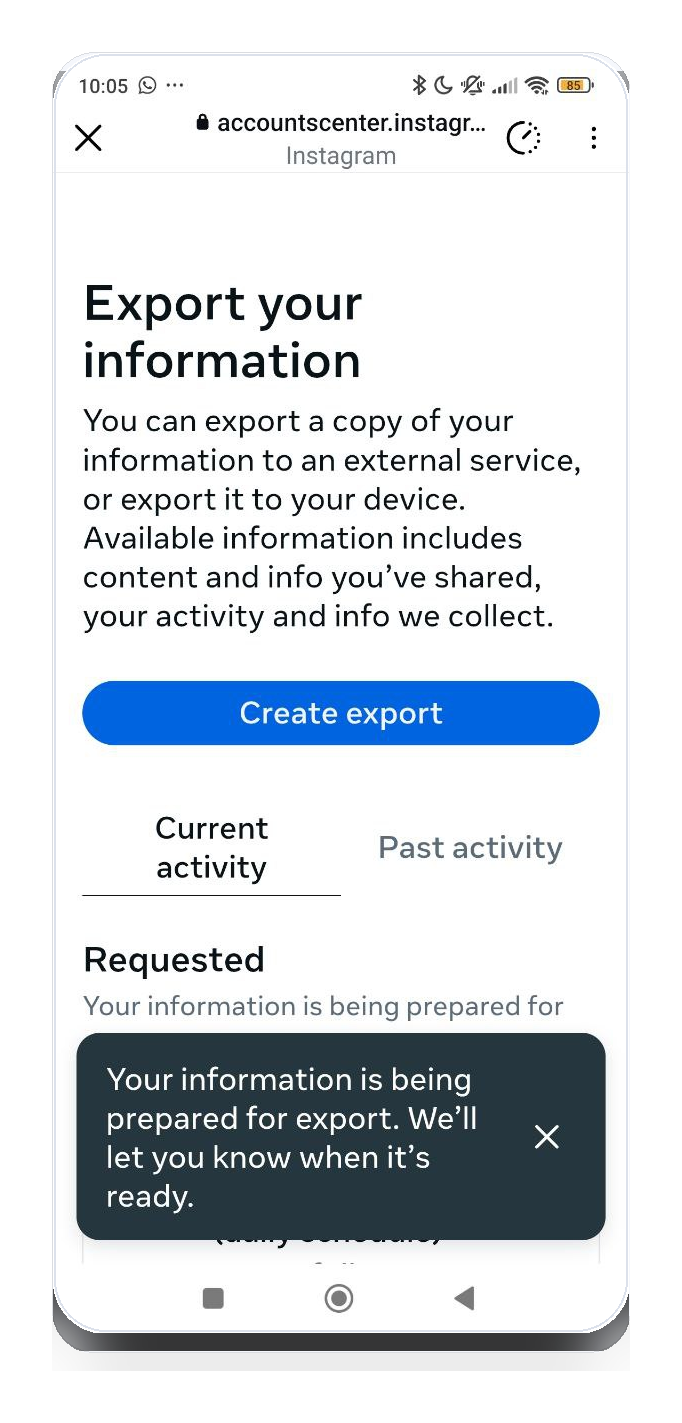
→Instagram is preparing your export and will let you know when it's ready. 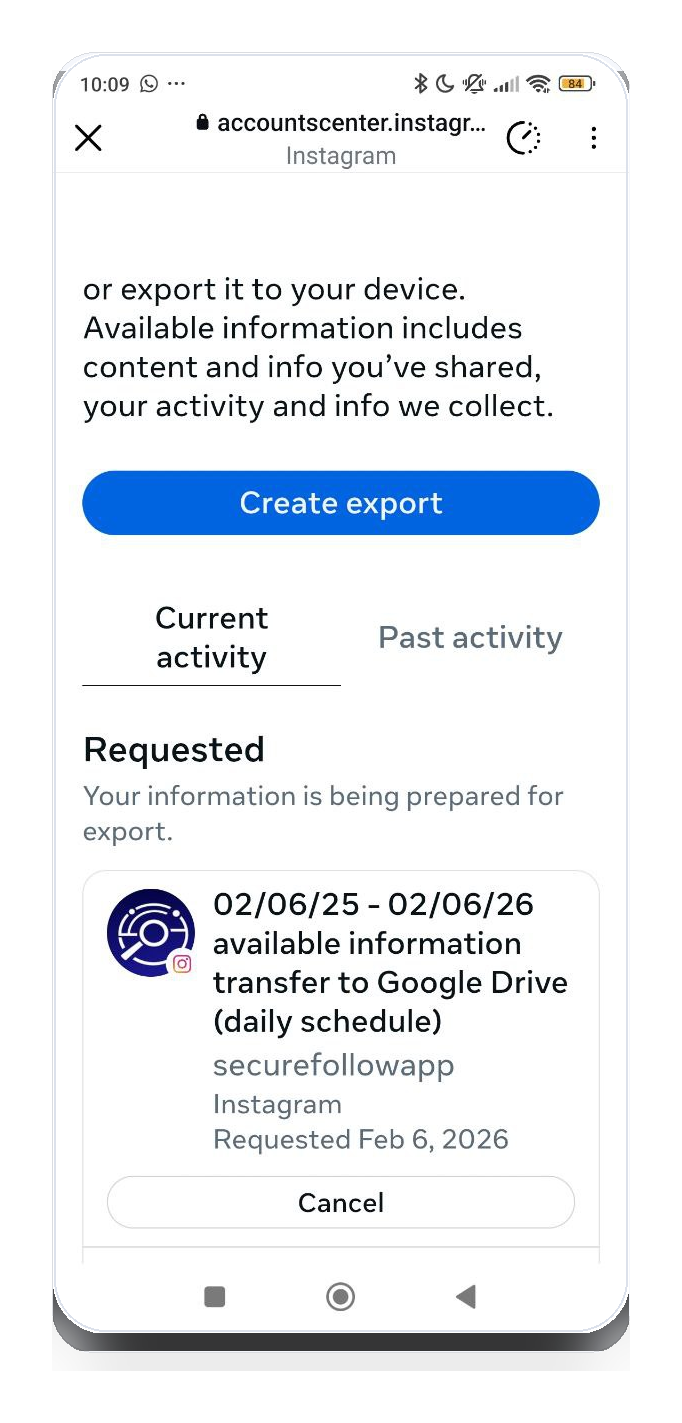
→Your request appears under Requested/Scheduled until it runs (you can cancel anytime). 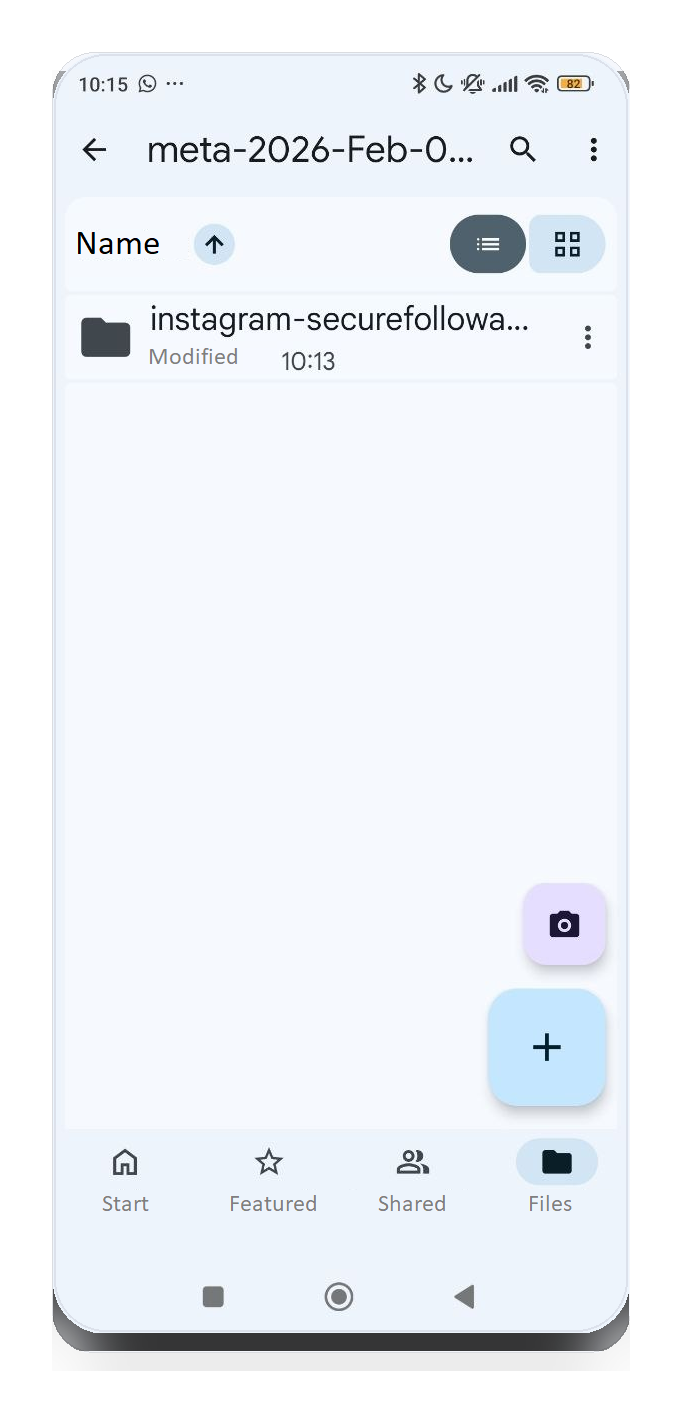
→In Google Drive, open the meta-... folder and the latest instagram-... run. 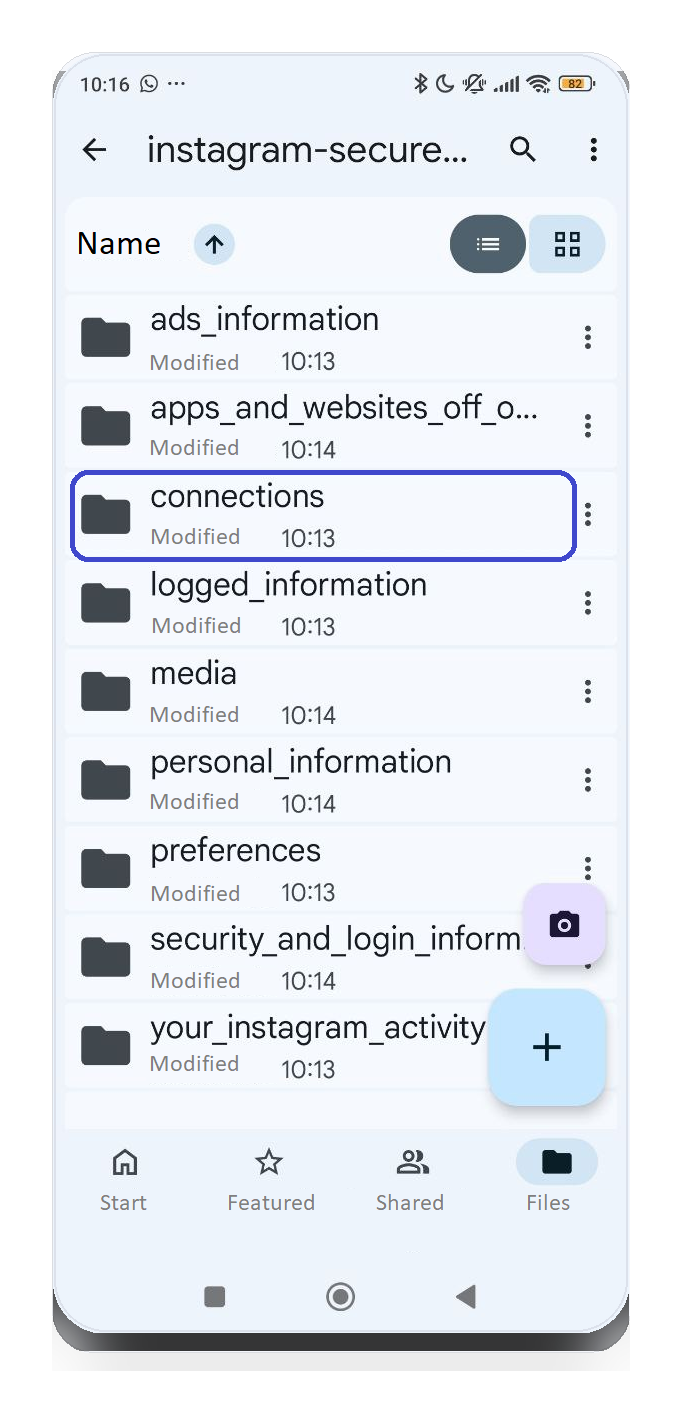
→In the export folder, find connections. 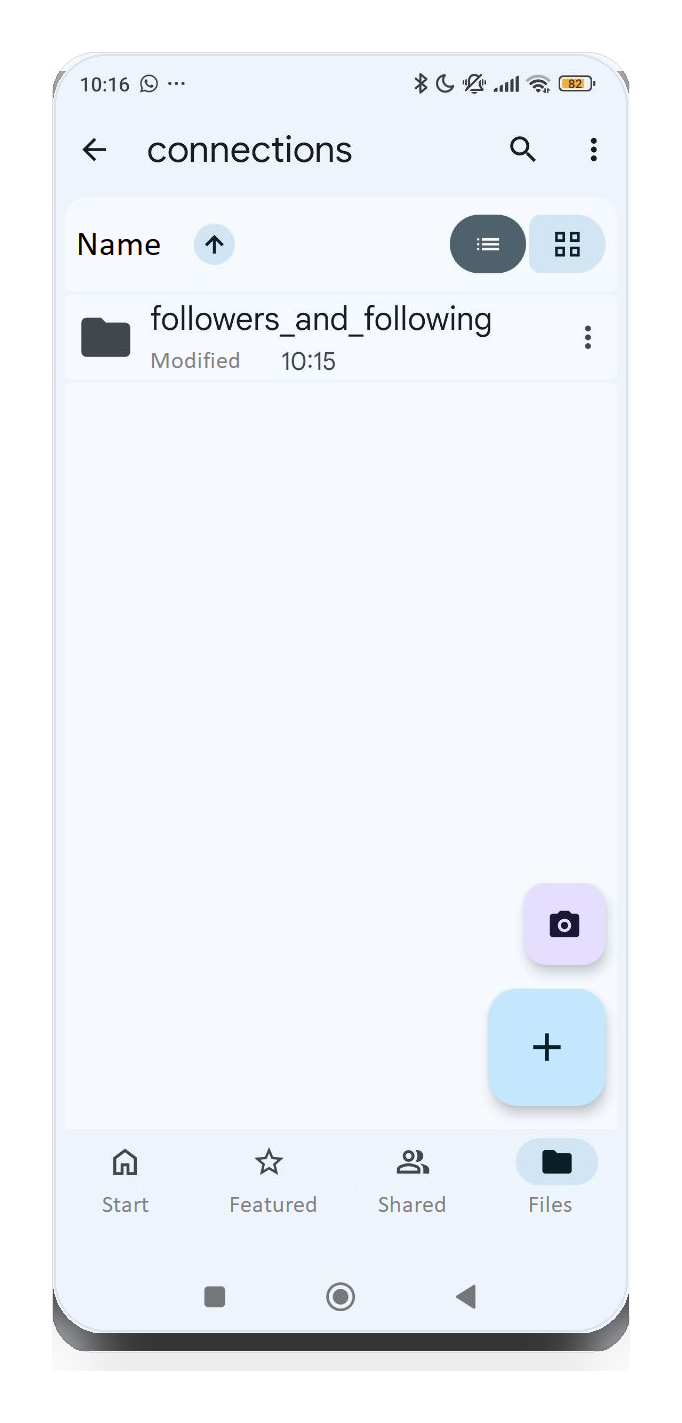
→Open connections → followers_and_following. 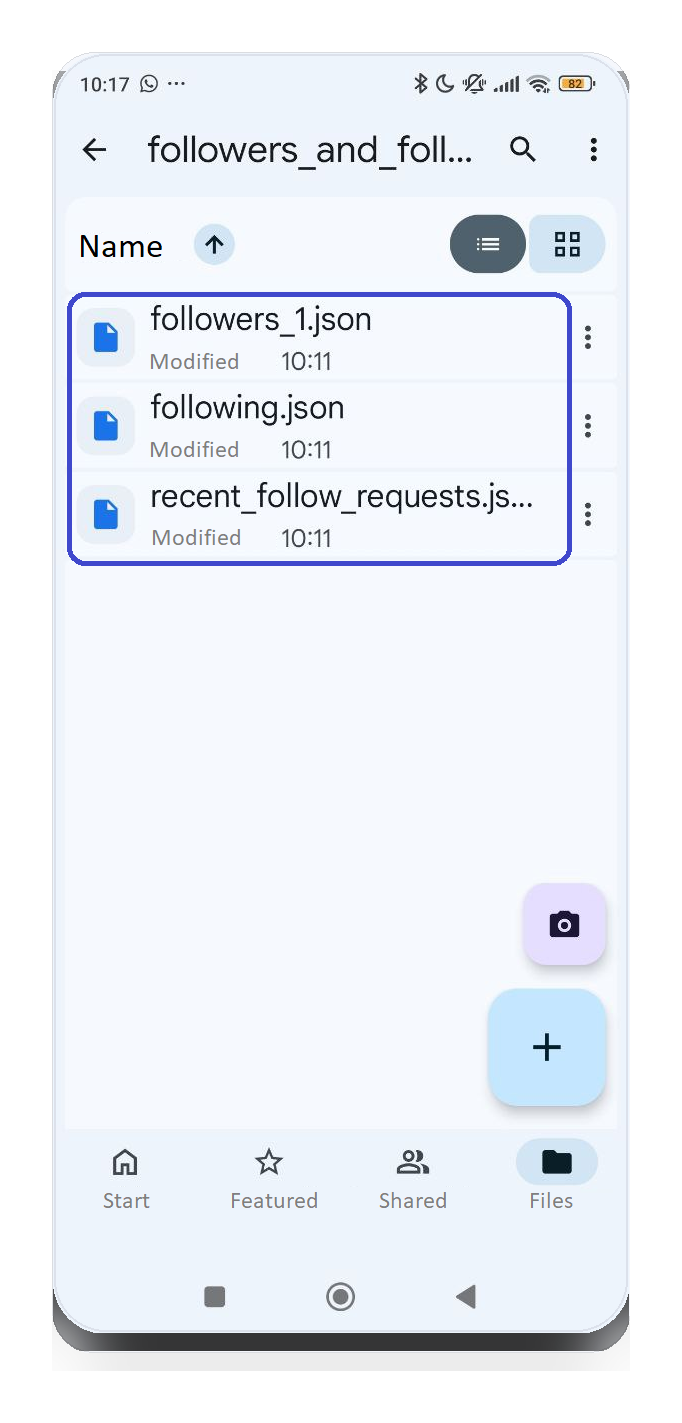
→Find followers_1.json, following.json, and recent_follow_requests.json. 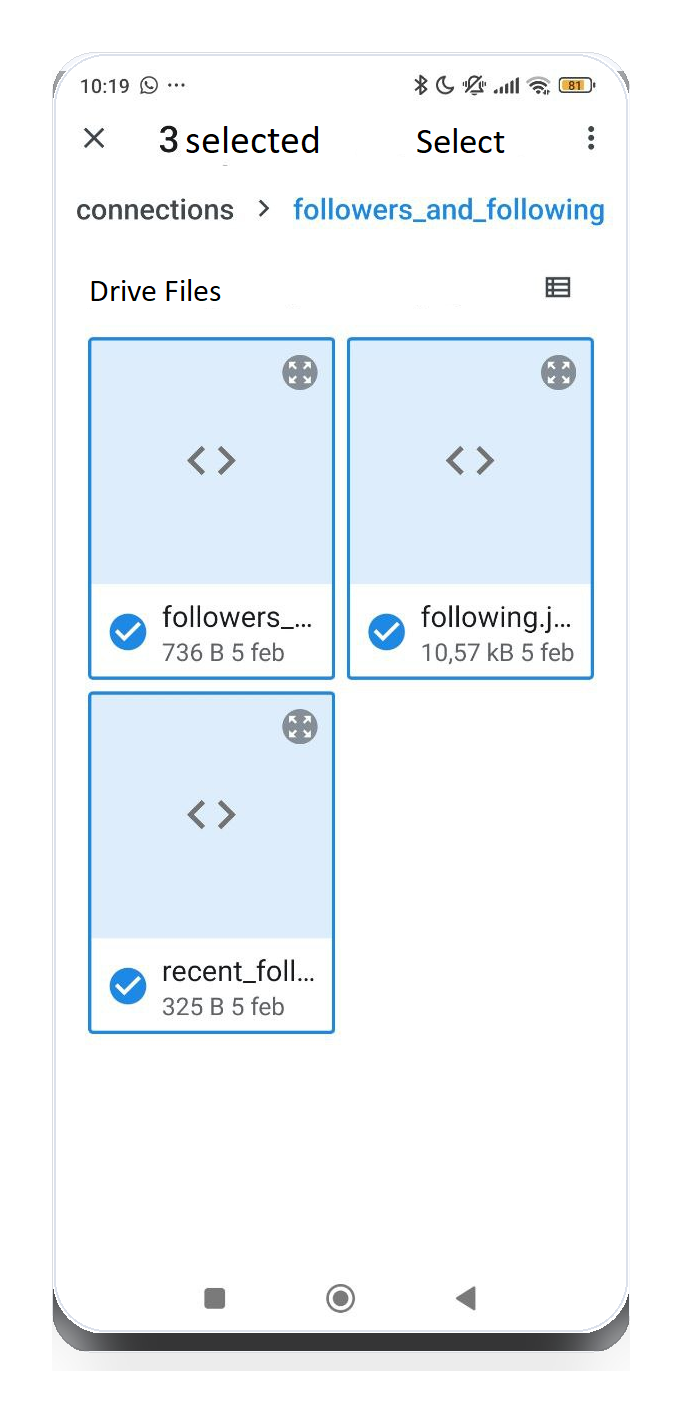
→Select the JSON files and tap Select.
Screens may vary by device and Instagram version.
Files to look for
The most common file names are followers_1.json and following.json. If you see followers_2.json or following_2.json, select all of them.
- These files may live in a cloud storage folder instead of inside a ZIP.
- You can import multiple JSON files at once.
- Everything runs locally in your browser (no uploads).